Celebrity Backstage Video Trend: Step-by-Step Guide to Create Viral AI Videos
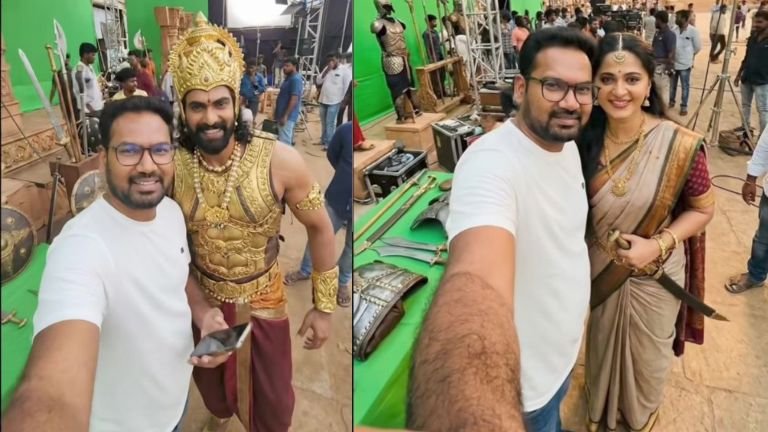
The Celebrity Backstage Video Trend is going viral on Instagram Reels and YouTube Shorts. This trend lets you appear as if you are backstage with famous celebrities, clicking selfie photos and smoothly transitioning between them in a single cinematic video.
You don’t need professional editing skills. With the right prompt and tools, anyone can create this viral video in minutes.
Below is a simple, beginner-friendly guide.
Step 1: Generate Celebrity Backstage Photos Using Gemini
First, open Gemini AI and upload your clear front-facing photo.
You need to generate 5–6 different images, each with a different celebrity.
Use the prompt below and change the Actor Name and Movie Name for each image.
⭐ HIGHLIGHTED PROMPT (IMPORTANT)
Prompt:
Create an ultra-wide, selfie-style image. The character is backstage, taking a selfie with (Actor Name) during the filming of the (Movie Name). Cinematic lighting, realistic skin tones, shallow depth of field, professional movie set background, candid backstage vibe.
Generate multiple images using the same prompt by only changing the celebrity names.
Make sure all images look natural, realistic, and well-lit.
Step 2: Convert Photos into a Smooth Video (Frame to Video)
Now go to the official Google Labs tool:
👉 https://labs.google/fx/tools/flow/
Select Frame to Video.
Upload your first image as the starting frame and second image as the ending frame.
Use the motion prompt below for realistic movement:
Video Motion Prompt:
Handheld selfie video. Start with the first image. The user is posing for a selfie with the actor. The user lowers the phone slightly and walks naturally to another nearby set. The camera tracks the user smoothly with light handheld shake. Background changes gradually while walking. The user stops, raises the phone, and ends exactly like the second image, posing for a selfie with the next actor. Smooth, continuous motion, no cuts, realistic movement, preserve faces, lighting, and environment.
Repeat this process for all image pairs.
Step 3: Edit and Combine All Clips
Once all short clips are generated:
- Import them into any video editor (CapCut, VN, Premiere Pro, or mobile editor)
- Arrange clips so that the last frame of one video matches the first frame of the next
- Add light background music if needed
- Export in vertical (9:16) format for Instagram Reels or Shorts
Final Result
Your video will look like:
- One continuous backstage walk
- Natural selfie moments with different celebrities
- Smooth transitions
- Realistic camera movement
This trend works extremely well for reels, shorts, and viral content.
Pro Tips
- Use similar lighting in all images for better transitions
- Avoid extreme facial expressions
- Choose celebrities with clear reference images